Technology 12 min read
Digital Accessibility for Business Apps: WCAG Guide
Legal requirements, essential WCAG criteria, and a practical checklist to make your business app accessible to all.
Table of contents11
According to the World Health Organization (Global report on health equity for persons with disabilities, 2022), an estimated 1.3 billion people, or 16% of the world's population, experience significant disability. Some of them are your employees, customers and partners. An inaccessible business app doesn't just shut them out: it creates friction for everyone, and if customers use it, it can bring legal obligations into play.
Digital accessibility is not a "nice to have" reserved for large corporations. The legal framework is tightening (the European Accessibility Act has applied to certain products and services since June 2025), and an accessible application is above all a better-designed one: easier to read, more predictable, faster to use every day.
This guide explains what WCAG and the EAA actually require, what applies to a small or mid-sized business, the essential criteria to meet, and an actionable checklist for building accessibility in from day one.
Key takeaways
- The European Accessibility Act (Directive (EU) 2019/882) has applied since 28 June 2025 to a defined list of consumer-facing products and services; micro-enterprises providing services are exempt.
- A purely internal app is usually not directly in scope, but a customer portal, online shop or tool delivered under a public contract may be.
- WCAG level AA is the sensible target for a business app: it's the level referenced by the European standard EN 301 549.
- Building accessibility in from the design stage costs far less than retrofitting screens that are already built.
- An accessible interface (keyboard support, clear labels, explicit error messages) also saves every user time on repetitive tasks.
Why accessibility matters (even for an SME)
What we know for sure
- Disability is common: around 16% of the global population according to the WHO (2022), and many disabilities are not visible (mild visual impairments, dyslexia, cognitive fatigue, chronic conditions).
- Disability is often temporary or situational: a broken arm, a migraine, a screen in bright sunlight, gloves on a job site.
- You may already employ people affected: accessible tools help you recruit and retain staff whose circumstances change.
- Your customers too: as soon as your app is open to the outside world (portal, online booking, ordering), it serves people whose needs you don't know.
Types of disabilities affected
| Type | Examples | Application impact |
|---|---|---|
| Visual | Blindness, low vision, color blindness | Screen readers, contrast, text size |
| Motor | Reduced hand mobility, tremors | Keyboard navigation, large click targets |
| Auditory | Deafness, hearing loss | Captions, visual alerts |
| Cognitive | Dyslexia, ADHD, memory disorders | Plain language, predictable navigation |
| Temporary | Broken arm, migraine, noisy environment | Benefits from all adaptations |
Accessibility isn't only for people with permanent disabilities. A sales rep using the app in bright sunlight (contrast), a technician wearing gloves (large click targets), a tired accountant at the end of the day (readability): everyone benefits from an accessible application.
The legal framework: EAA, national rules and WCAG
European Accessibility Act (EAA)
Directive (EU) 2019/882 has applied since 28 June 2025 to a specific list of consumer-facing products and services: e-commerce, banking services, e-books, electronic communications, certain passenger transport services, and self-service terminals. Micro-enterprises providing services (fewer than 10 employees and annual turnover or balance sheet of no more than €2 million) are exempt, and transition periods apply to some existing services.
In practice, for an SME:
- Internal app (used by your staff): generally outside the direct scope of the EAA, but still good practice and an inclusion issue for your employees.
- Customer portal, online shop, booking system: check whether your service falls into one of the listed categories. If in doubt, ask a lawyer to confirm.
National rules
Each EU country has transposed the directive and may have additional rules. In France, for instance, the RGAA framework applies to public bodies and to private companies with more than €250 million in French turnover. In the UK (outside the EU), the Equality Act 2010 requires reasonable adjustments and public-sector websites must meet accessibility regulations. In the US, the ADA is regularly applied to websites and apps.
WCAG (Web Content Accessibility Guidelines)
Published by the W3C (version 2.2 since October 2023), WCAG defines three conformance levels:
- Level A: bare minimum (alt text, keyboard navigation)
- Level AA: recommended standard (4.5:1 contrast, captions)
- Level AAA: excellence (7:1 contrast, sign language)
Recommended target for a business app: Level AA. It's the level referenced by EN 301 549 and most national rules, and it offers the best effort-to-impact ratio.
The 4 core principles (POUR)
- Perceivable: information must be presentable in ways users can perceive
- Operable: the interface must work with different input methods (mouse, keyboard, voice)
- Understandable: information and operation must be clear
- Robust: content must be interpretable by assistive technologies
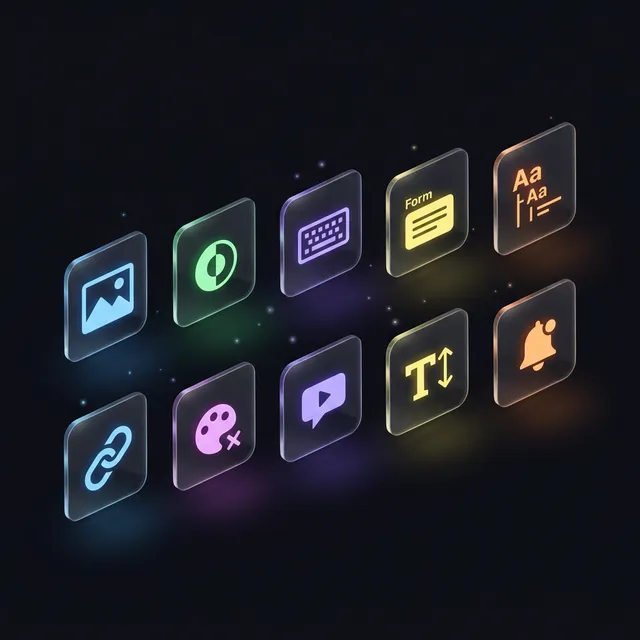
The 10 essential criteria for your business app
1. Alternative text for images
Every meaningful image needs a descriptive alt attribute. Decorative images should have an empty alt.
2. Sufficient contrast
Minimum ratio of 4.5:1 between text and background. Large text (24px, or about 19px bold) can use 3:1. Check with a tool such as WebAIM Contrast Checker.
3. Keyboard navigation
Every feature must be usable without a mouse: Tab to move, Enter to confirm, Escape to close. Tab order must follow the logic of the screen.
4. Accessible forms
Every form field needs an explicit label. Error messages must identify the field and explain how to fix it. Required fields must be indicated by more than color alone.
5. Heading structure
Use a logical heading hierarchy (H1 → H2 → H3), with one H1 per page. Headings let screen reader users jump through content quickly.
6. Descriptive links
Avoid "click here" or "learn more" links without context. Each link should describe its destination: "View the maintenance guide."
7. Color is never the only signal
An error field shouldn't be flagged in red alone: add an icon, text or border.
8. Multimedia with alternatives
Videos need captions, audio needs a transcript, and animations must be pausable.
9. Resizable text
Text must remain readable and functional when zoomed to 200%, with no clipped content or broken features.
10. Accessible status messages
Notifications, alerts and confirmations must be announced to assistive technologies (role="alert" or aria-live).
Comparison: accessible vs. non-accessible app
| Criteria | Non-accessible | Accessible |
|---|---|---|
| Users excluded | Anyone who can't use a mouse, read low contrast or rely on a screen reader | Nobody excluded by design |
| Legal risk | Real if the app falls under the EAA or national rules | Demonstrable compliance (statement, audit) |
| Overall UX | Variable | Better for everyone |
| Adoption | Pushback from users who struggle | Broader uptake |
| SEO (public pages) | Confusing structure for search engines | Headings, alt text and descriptive links that help search engines |
| Employer brand | Neutral | Inclusive |
| Maintenance | Patched-together screens, hard to evolve | Clean structure, easier to maintain |
What accessibility actually pays back
Accessibility is not just a compliance cost:
- Productivity: a well-structured screen with keyboard support and clear labels is faster to fill in, with fewer mistakes, for every user.
- Hiring and retention: an accessible tool doesn't shut out any candidate or an employee whose situation changes.
- Public contracts: accessibility is a frequent requirement in public-sector tenders.
- Support: explicit error messages and predictable flows cut down on help requests. Track it with the indicators in our ROI guide.
What does it cost?
There's no universal percentage: it depends on the number of screens, the components used and the target level. But one thing is consistent:
- From the design stage, accessibility is handled in mockups and base components, so the extra cost stays limited.
- As a retrofit, you have to rework screens that are already built and tested, which is significantly more expensive.
- Under legal or contractual pressure, add urgency, an audit and an accessibility statement.
Accessibility and hours back: the overlooked connection
An accessible app is also an app that saves time on repetitive work: keyboard shortcuts to chain data entry, pre-filled fields, error messages that say exactly what to fix, statuses you can read without decoding a color. Every second saved on an entry repeated dozens of times a day adds up to hours over a year.
At Iselia Projects, we go one step further: rather than making data entry more comfortable, we first try to eliminate it (automatic document reading, pre-filling from your other tools, reminders that go out on their own). That's what our custom business tools are for. To see what it could mean for you, the time savings calculator gives an indicative estimate in a few minutes. Training providers, who must accommodate learners with disabilities, are often among the first concerned.
Practical checklist for your project
Design phase
- Contrast checked on all mockups (4.5:1 minimum)
- User journeys testable with keyboard only
- Color never the sole carrier of information
- Forms with explicit labels and clear error messages
Development phase
- Semantic HTML (header, nav, main, footer, section)
- ARIA attributes used correctly (aria-label, aria-describedby, role)
- Visible focus on all interactive elements
- Logical tab order
Testing phase
- Screen reader test (VoiceOver on Mac, NVDA on Windows)
- Full keyboard navigation test
- Text zoom test at 200%
- Automated audit (axe DevTools, Lighthouse) followed by a manual review
Quick wins: 10 improvements you can make today
These changes take little effort and make a real difference:
- Add alt text to all images: describe what the image conveys, not just what it shows
- Ensure sufficient color contrast: at least 4.5:1 for body text
- Add visible focus indicators: keyboard users must see where they are
- Use semantic HTML:
<button>for actions,<a>for navigation,<h1>–<h6>for headings - Label every form field: each input needs an associated
<label> - Don't rely on color alone: add icons or text next to color-coded statuses
- Make touch targets big enough: WCAG 2.2 sets a 24×24 px minimum (AA) and recommends 44×44 px (AAA)
- Test with the keyboard only: go through the whole app using Tab, Enter and Escape
- Show errors in context: tell users exactly what's wrong and how to fix it
- Add skip links: let keyboard users jump past repeated menus
These quick wins address many of the most frequent issues found in business applications, but they don't replace a proper audit.
Our approach at Iselia Projects
At Iselia Projects, accessibility is built in from the requirements phase, not bolted on afterwards:
- Baseline review: WCAG evaluation of your existing tools
- Accessible design: mockups checked for contrast, navigation and forms
- Compliant development: semantic HTML, ARIA, automated tests
- Accessibility testing: screen reader and keyboard validation
- Handover: best-practice awareness for your team

Frequently Asked Questions
Is accessibility mandatory for SMEs?
Not across the board. The European Accessibility Act, in force since 28 June 2025, covers specific consumer-facing products and services (e-commerce, banking, transport, etc.) and exempts micro-enterprises providing services. National rules add further obligations, mainly for the public sector and large companies. An SME that sells online or bids for public contracts should check where it stands.
How much does it cost to retrofit accessibility?
It depends on the number of screens and the state of the code; an initial audit lets you put a precise figure on it. The key point: fixing accessibility after the fact costs significantly more than building it into the mockups, because existing screens have to be reworked and retested.
Should I aim for WCAG Level AAA?
Not for most business apps. Level AA is the benchmark referenced by EN 301 549 and most regulations. AAA is targeted on specific content where it makes sense, not as an overall goal.
Is an accessibility audit mandatory?
Organizations subject to accessibility regulations generally have to publish an accessibility statement based on an evaluation. For others, it's recommended. Automated tools (Lighthouse, axe) only catch part of the issues; a manual expert audit is still needed for a reliable assessment.
Does accessibility slow down development?
Built in from the start, it adds little work: it's mostly good habits (accessible components, semantic HTML, keyboard testing). It also improves code quality and limits technical debt.
How can I quickly test my app's accessibility?
Three tests in five minutes: (1) navigate with the keyboard only (Tab, Enter, Escape); (2) turn on your operating system's screen reader; (3) run Lighthouse in Chrome DevTools (Accessibility tab). If you get stuck or the score is low, a full audit is warranted.
Conclusion: accessibility is an advantage, not a constraint
Digital accessibility isn't a box to tick: it's a design principle that improves the experience for everyone. An accessible app is more readable, more intuitive, more robust, and it excludes no one.
The cost stays under control when it's built in from the design stage, and the legal framework keeps tightening for services open to the public.
Is your app accessible, and is it really saving you time? At Iselia Projects, the assessment is free and with no commitment: in 30 minutes, we review your repetitive tasks and your tools, then estimate the hours you could get back. You can also book a slot directly. Book your free assessment →
Go further
From this guide to your hours
- Automation Custom business tools Internal apps, client portals, dashboards and automated reports designed for your industry and connected to your data — you own the code.
- Calculator Estimate my hours back Free calculator: your tasks, your volumes, an indicative estimate of the hours saved.
- Support Support plans Monitoring, maintenance and improvements of your automations after go-live.